
Think of it like Instagram, but private and self-hosted. Just a private place to share photos with you, our family, while I (John) maintain control of the data and images, instead of handing them over to Zuckerberg.
The primary purpose of this server is to share photos of the new baby, but feel free to post any of your own photos you'd like to share with this group! Keep in mind we have members from both John and Hailey's extended families.
Part 1 of 3
Create Your Account
Open the sign-up link from the group chat
Tap the link that was shared with you. It should open a sign-up page in your browser.
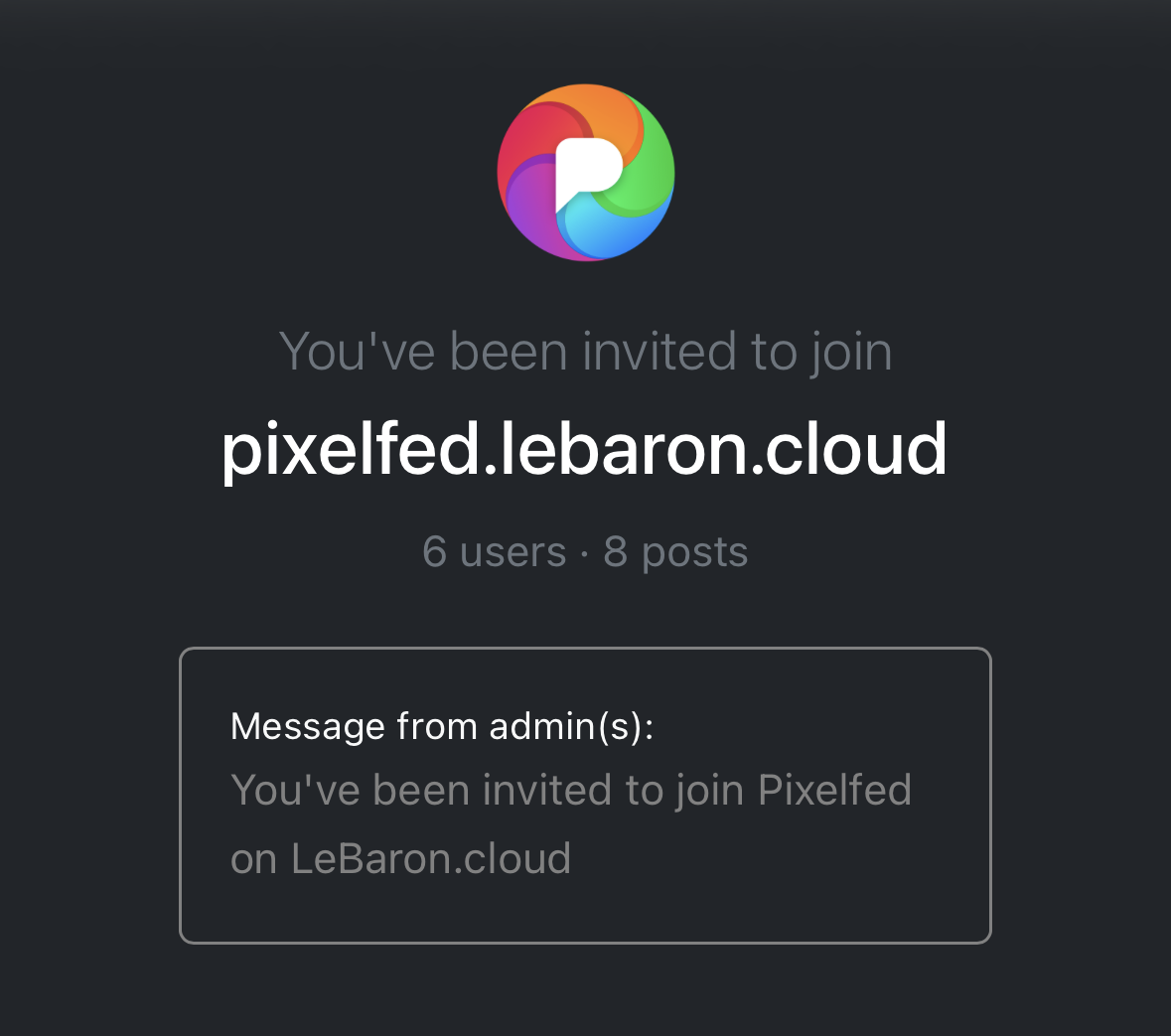
Choose a username
This is how family will find you on Pixelfed. Keep it simple:
- First name + last initial, e.g. mary_j
- A nickname, e.g. grandma_sue
- Add a number if your first choice is taken, e.g. david2
Choose a display name
Your display name is the name shown above your posts. We suggest using your full name so the rest of the family can easily recognize who you are.
Enter your email and create a password
Use an email you actually check. Your password should be something you can remember but others can't guess.
Part 2 of 3
Download the App Optional
Get the Pixelfed app on your phone
The app is the easiest way to post photos and see what family is sharing. Download the one that matches your phone:


Enter our server address, and sign in.
When the app opens, it will ask which server you belong to. Type in this address exactly:
Then enter your username and password and tap Sign In.
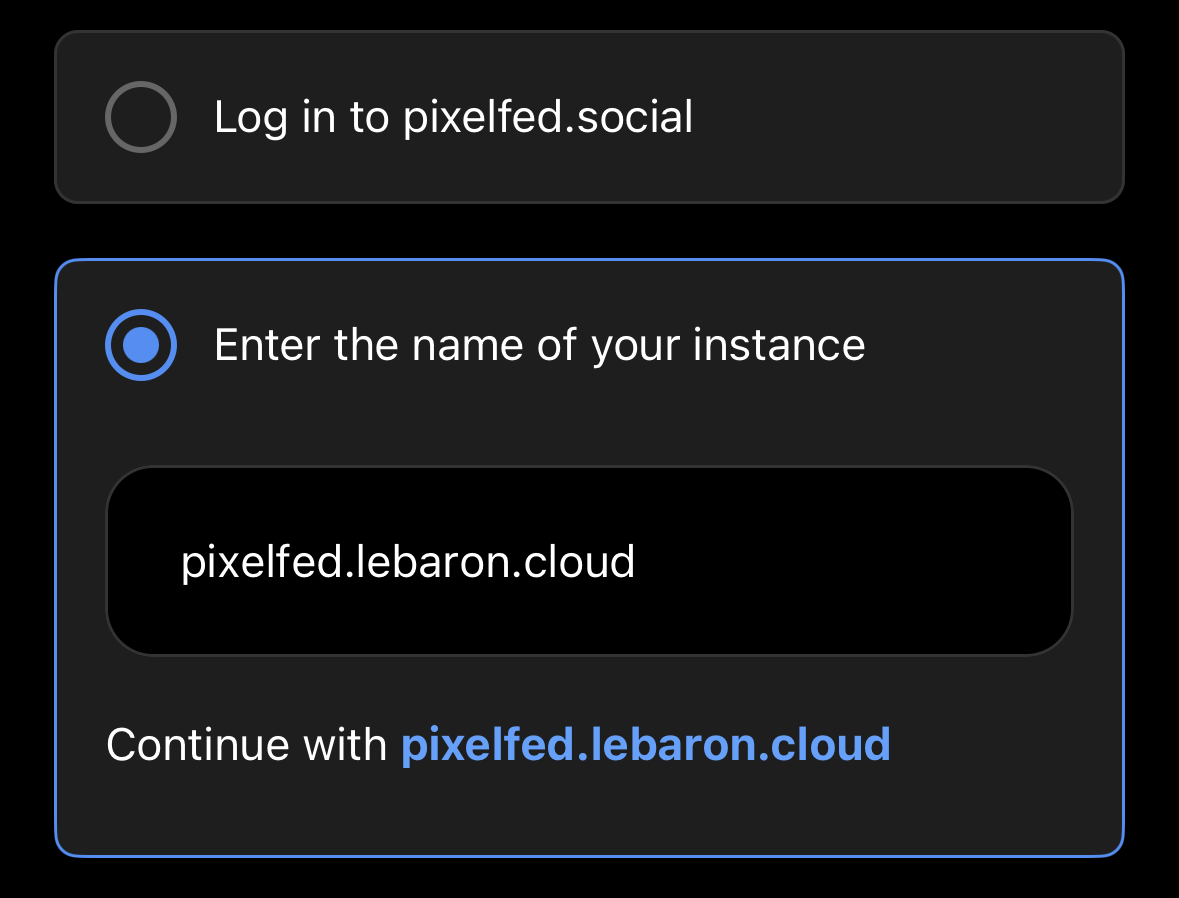
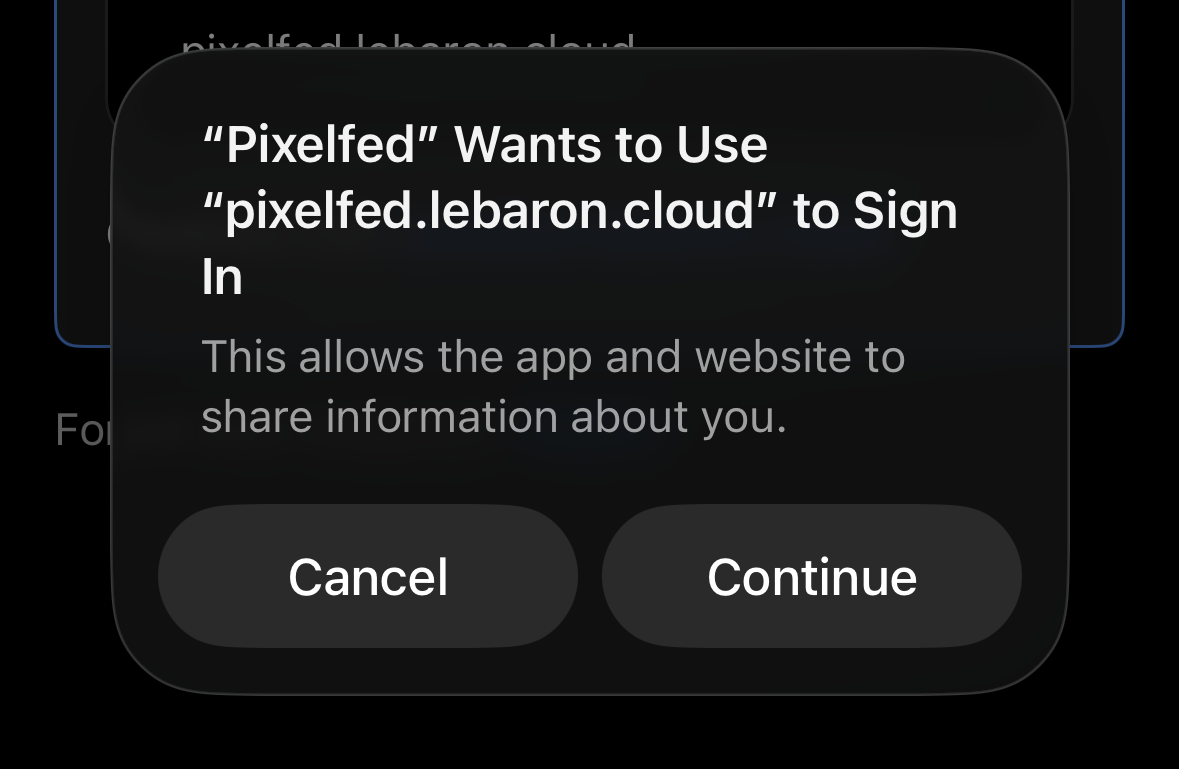
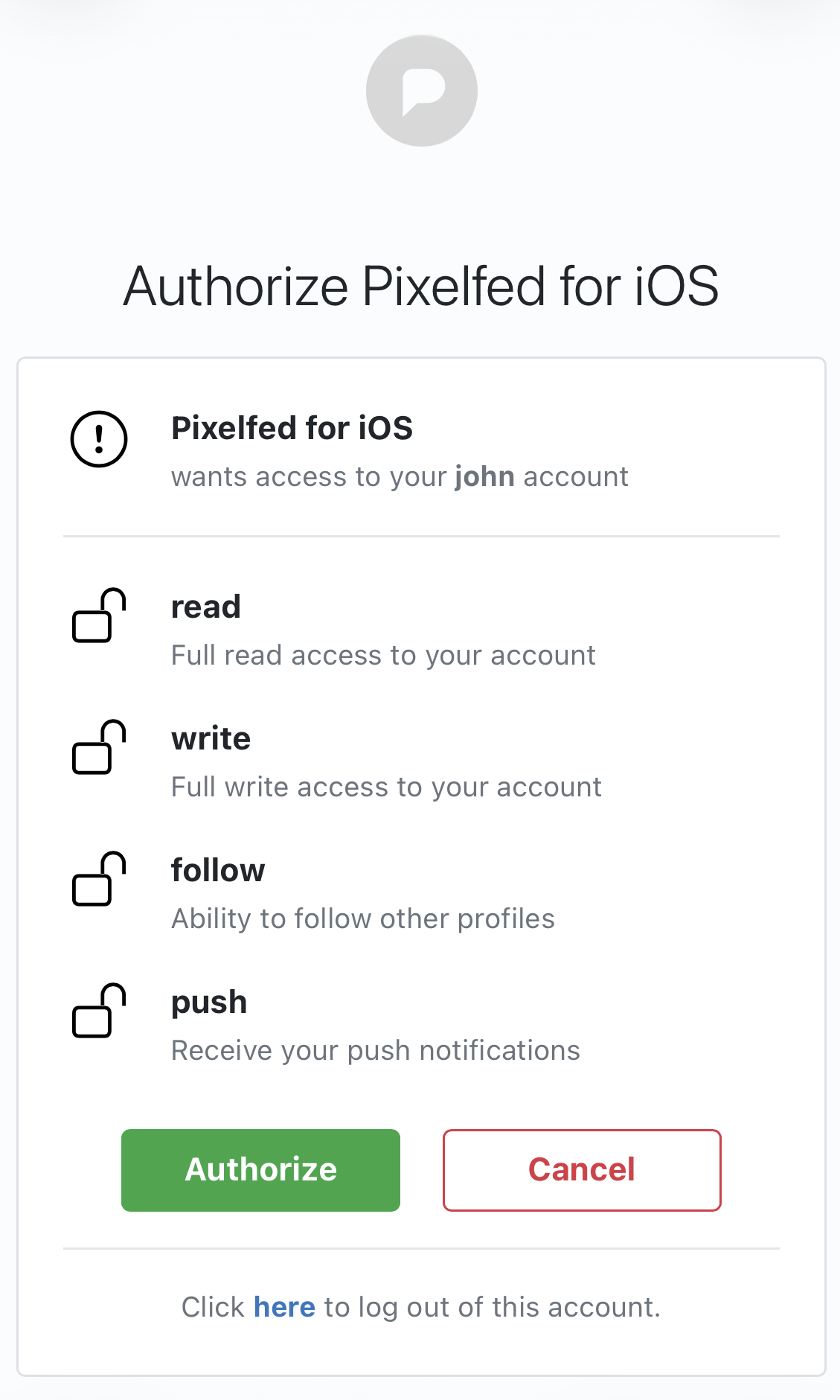
The app may ask you to confirm access to your account. Tap Authorize to continue.
Part 3 of 3
Find Family and Follow Them
Search for a family member
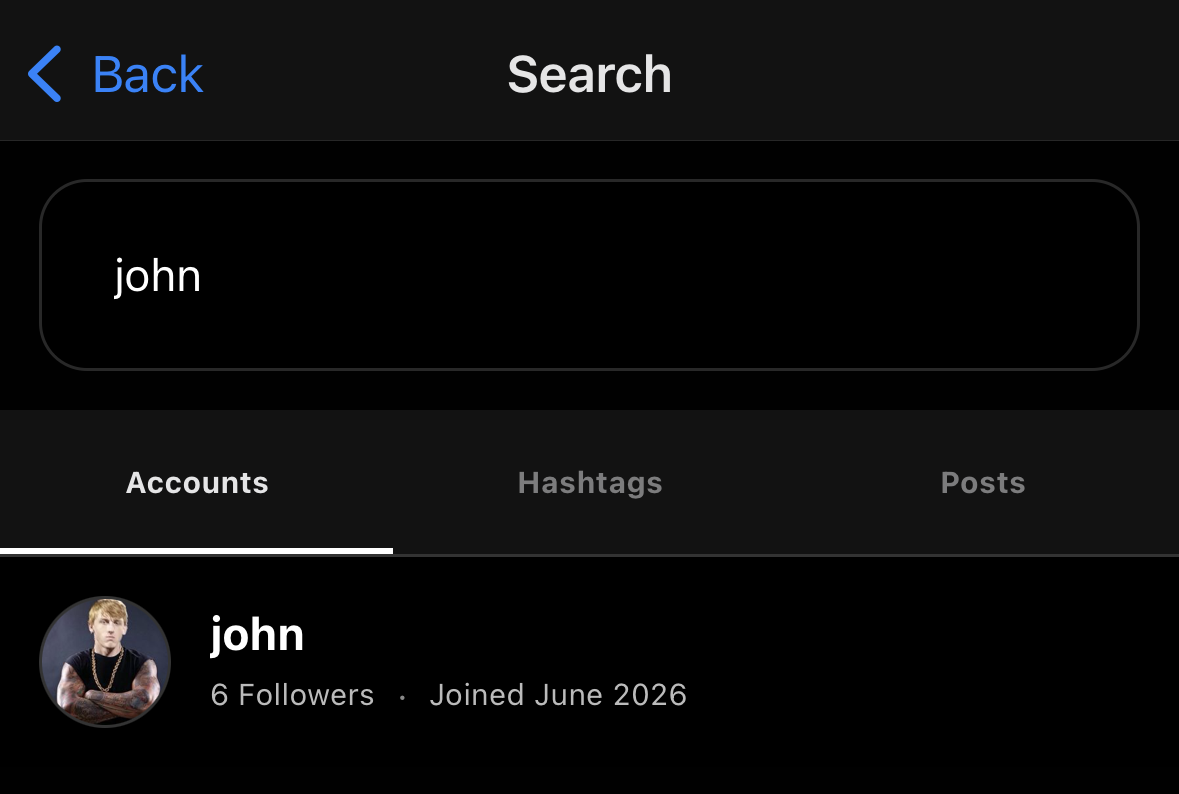
Tap the magnifying glass icon (🔍) and type the username of someone you want to follow. Their profile will appear in the results.
Start out with john and HLeBaron if you're here for baby pictures!
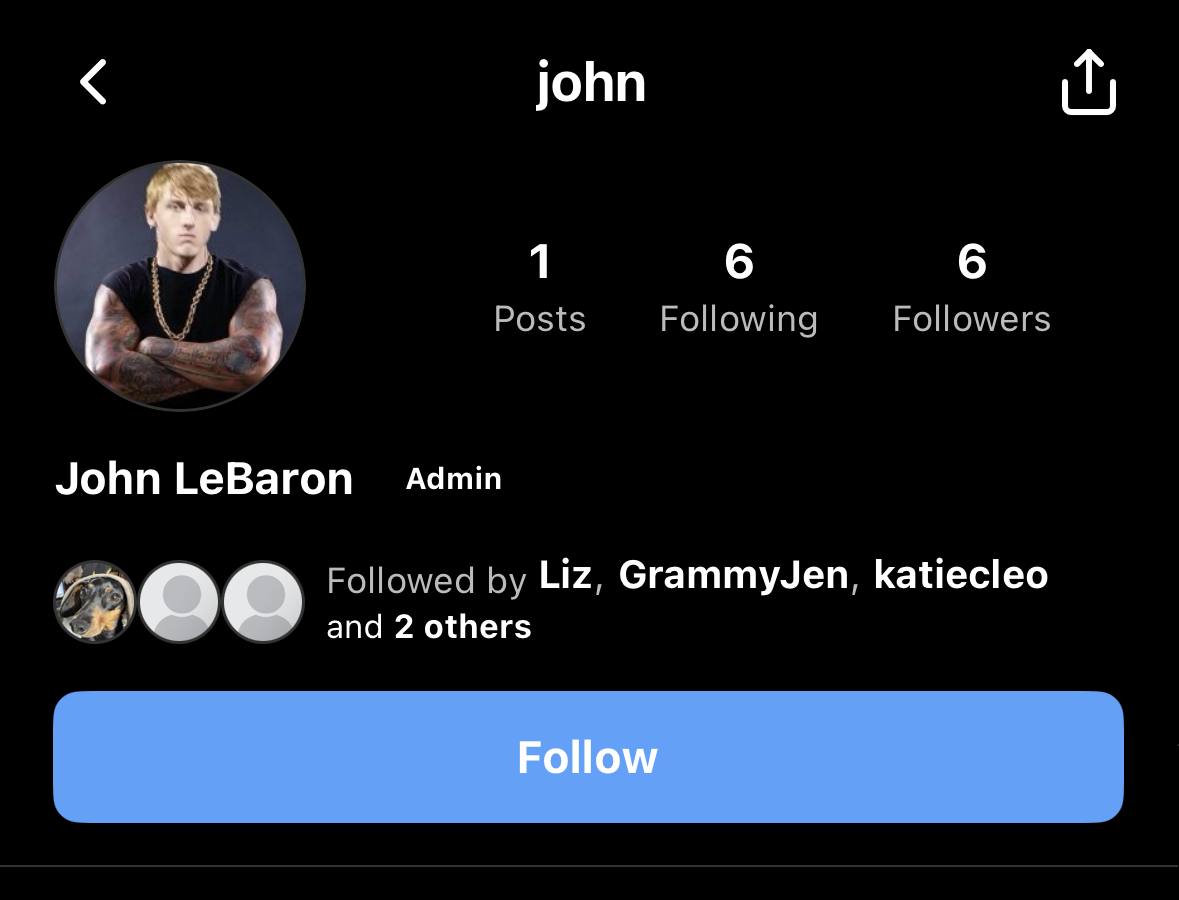
Tap Follow on their profile
Open their profile and tap the Follow button. Their photos will start showing up in your feed. Repeat for each family member you want to follow.
You're in
Tap the Home icon (🏠) to see your feed. Like a photo by tapping the heart (❤️), or leave a comment. To post your own photo, tap +, pick a photo, and tap Post.